For Managers
Sign up, set up your team, and start filling fixtures.
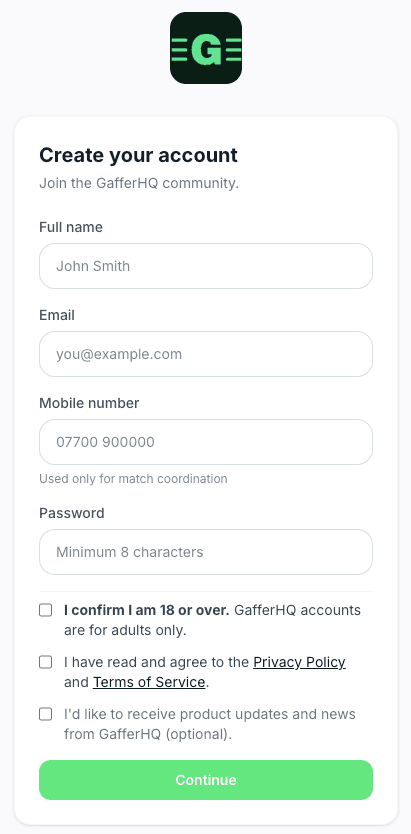
Sign-up screen
Create your manager account in a couple of minutes.
- Go to app.gafferhq.uk.
- Create your profile. You'll receive an email to verify your address. Click “Verify email address” to activate the account.
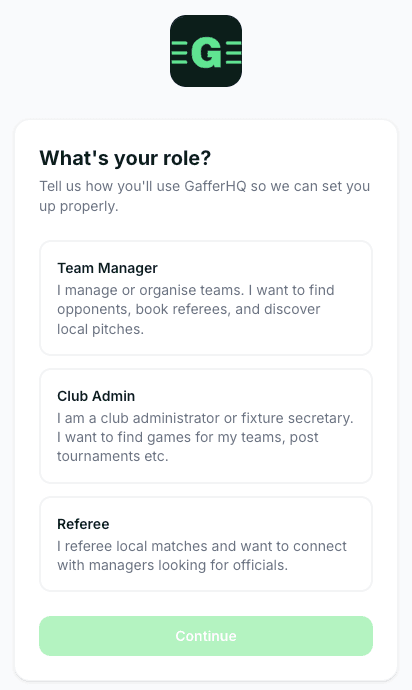
Pick your role
Tell GafferHQ how you'll be using the app so it can set you up correctly.
- Select Team Manager if you manage or organise a team and want to find opponents, book referees, and discover local pitches.
- Select Club Admin if you're a club administrator or fixture secretary — same manager dashboard, but signals you may be organising for multiple teams or acting on behalf of a club.
- Hit Continue to proceed to your team setup.
Create your team
A few key details so opponents and referees can find you at the right level.
- Club name — the club you're a member of.
- Team name — your specific squad name (this is how other managers will see you).
- Age group — based on the stated season, to avoid confusion.
- County — choose the right county. Managers and referees filter the calendar by county to narrow searches when looking for a game.
- Kit colour — select your prominent kit colour.
- League & division — helps match you with opponents at your level.
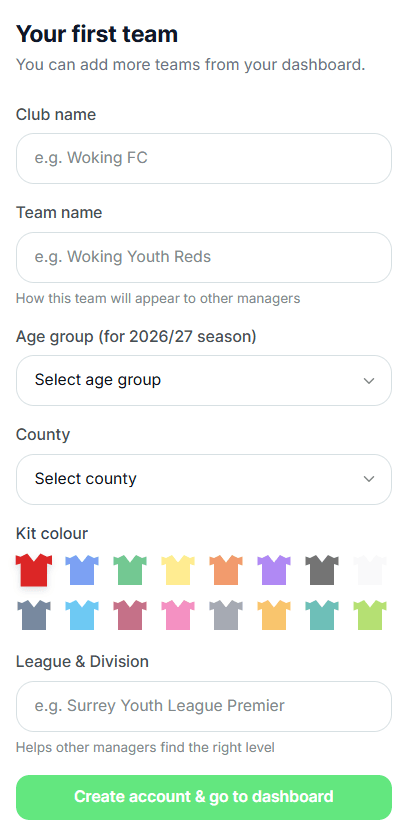
You can create additional teams at any time from your home page.
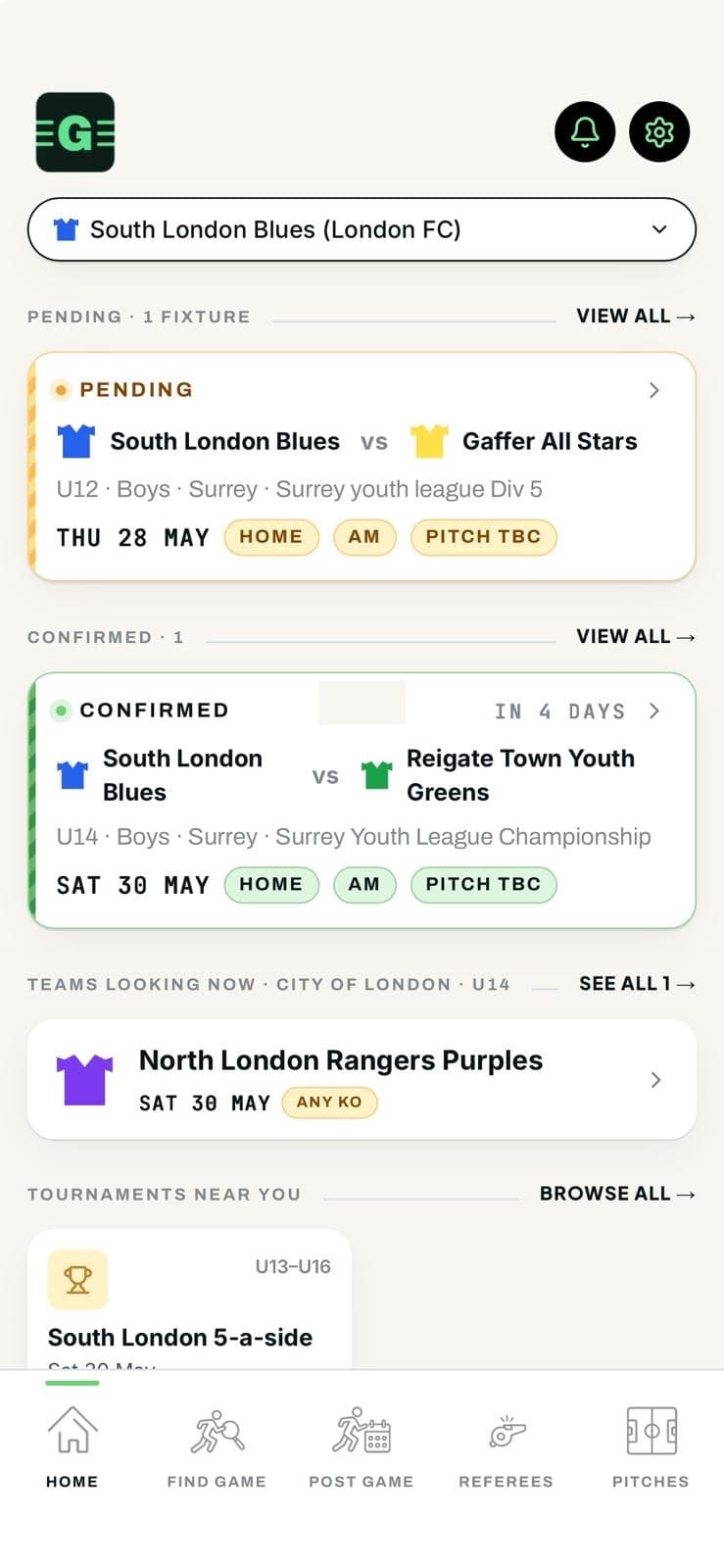
Home screen
Your dashboard — fixtures, requests, and nearby opportunities, all in one view.
Top toolbar (left to right):
- The “G” logo takes you back to the home screen.
- Share creates a link to share with other managers and referees, to help grow the community.
- Contact us sends a message to the team at GafferHQ.
- Notifications show new activity on any fixture you're organising.
- Settings — notification preferences, data privacy, account deletion etc.
On the page:
- The top dropdown bar shows your team. If you have multiple teams, switch between them here to view the associated fixtures.
- You can also add a new team from this dropdown.
- Match requests appear at the top — engage with the requesting manager directly.
- Your Pending and Confirmed fixtures are listed below.
- A Pending fixture means you're chatting with another manager but the game isn't confirmed yet.
- Fixtures can only be Confirmed by the manager who posted their availability in “Post a game”. They may have received requests from multiple managers, so they choose who to play.
- Teams looking now shows other teams in your county currently looking for games.
- Tournaments near you shows tournaments posted that you might be interested in.
Find a game
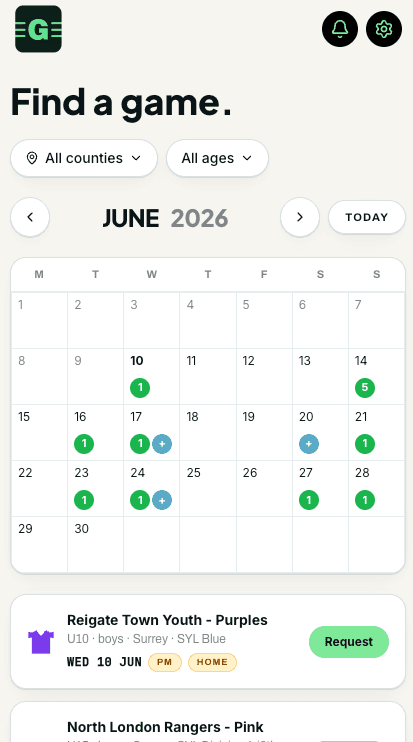
The calendar view shows every game posted by other managers in your area.
- Filter by county and age group to narrow your search.
- Green circles with numbers indicate the number of games posted on a date.
- Blue circles with ‘+’ indicate tournaments or trials posted on that date.
- The orange flag icon indicates dates where you have already posted a game.
- Click any date to see relevant games — team name, age, league standard, AM/PM, and home/away/either.
- Click Request on any game to engage with the posting manager.
Post a game
Let opponents come to you — share your availability and they'll request the fixture.
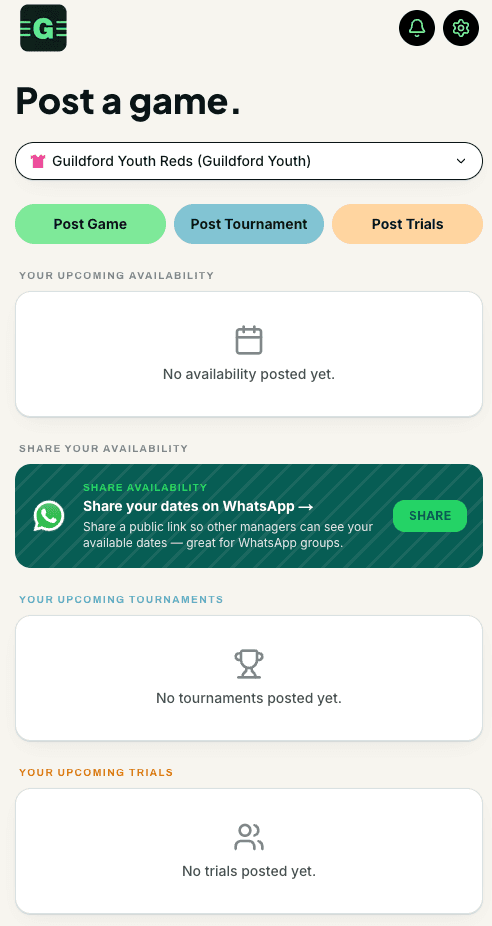
- Choose the relevant team from the top dropdown bar (if you have multiple).
- Click Post Game and enter the details: date, time preference, and home/away/either.
- Your upcoming availability shows dates you've already posted — clear at a glance, and helps avoid duplicates.
- Your upcoming tournaments shows tournaments you've previously posted.
- When another manager requests a game you've posted, you'll get a notification and an invite to start chatting. It then becomes a Pending fixture on your home page.
- Click 'Share' to create a public link of your availabilty you can post to WhatsApp.
Post a tournament or trial
Tournaments & trials are information-only — they let other teams know what your club is running.
- Click the Post Tournament or Post Trial button.
- Complete fields for name, date, age group, venue, and county.
- For further info, paste a URL describing the event.
- You can also upload an image of a flyer so it's quicker to share all the details.
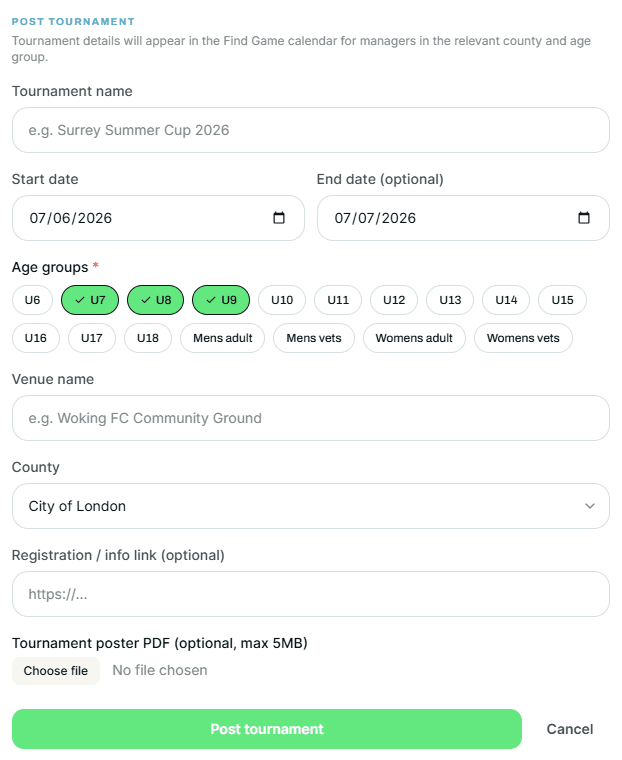
There is no booking, chat or interaction function on tournament/trial listings — they exist purely to inform other teams. For a weekend tournament where different age groups play different days, you can either (a) post two separate tournaments with the same name and a one-day duration each, or (b) tick all age groups covered and choose a two-day duration.
URLs and flyer uploads are verified by GafferHQ before being posted to the calendar, in the interest of safeguarding and the Online Safety Act 2023.
Booking referees
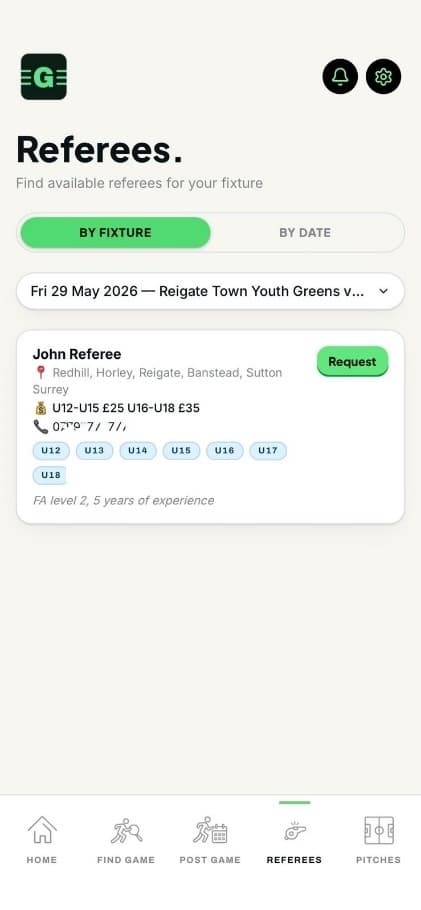
Find a referee for your fixtures in a few taps.
- Browse available referees by (a) a Pending or Confirmed fixture, or (b) by date.
- Click Request to send a notification to the referee.
- The referee can Accept or Decline.
- If they accept, they're added to the fixture details and the fixture chat, accessible from your home screen.
- If no referees are available for your fixture or date, you can request that referees in your area and age group update their availability — we'll email them on your behalf.
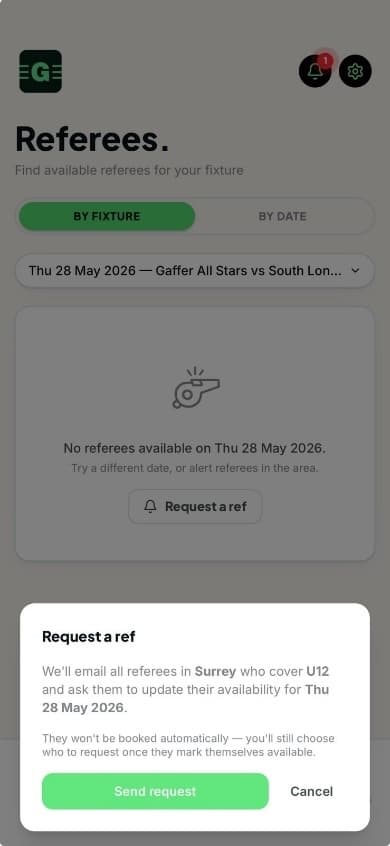
Fixture engagement
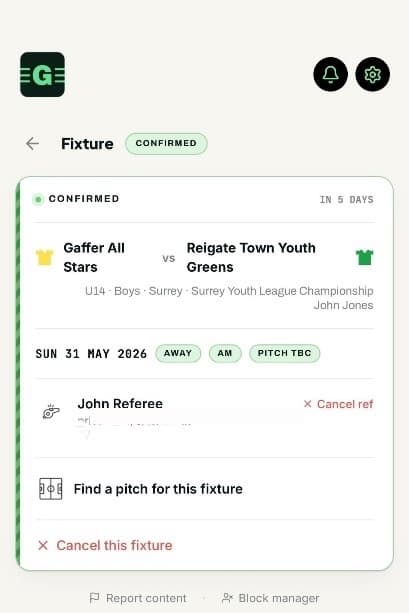
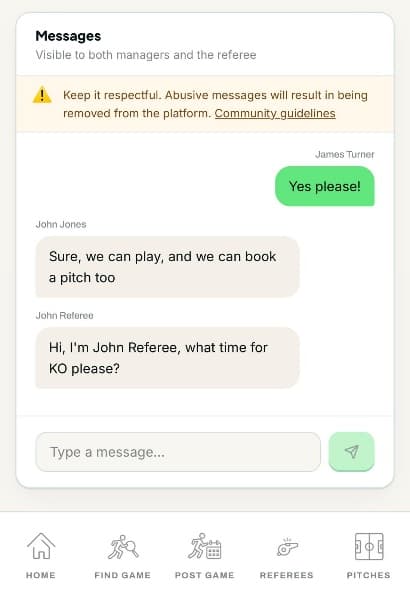
Where the chat happens — coordinate logistics with the opposing manager and your referee.
- Chat is enabled with the corresponding manager of any Pending or Confirmed fixture.
- If a referee is booked, they're added to the fixture and the chat, to help coordinate logistics — venue address, kick-off, etc.
- The referee can be cancelled at any time.
- The referee can also cancel at any time.
- The fixture itself can be cancelled by either manager.
- All communication is private to that specific fixture.
Pitches
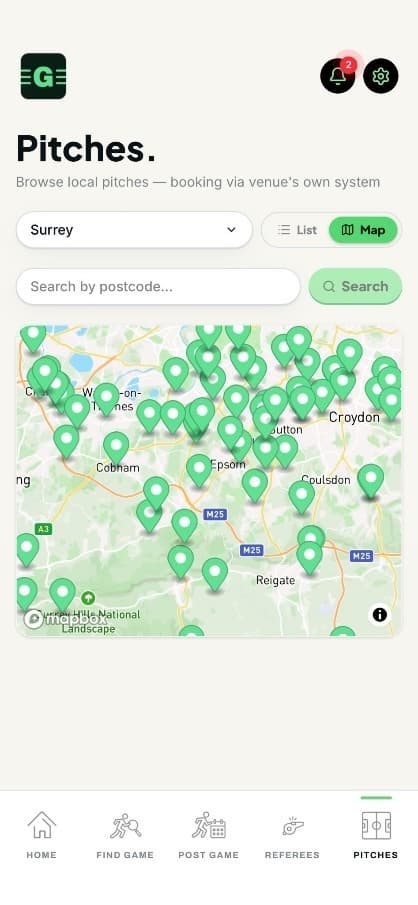
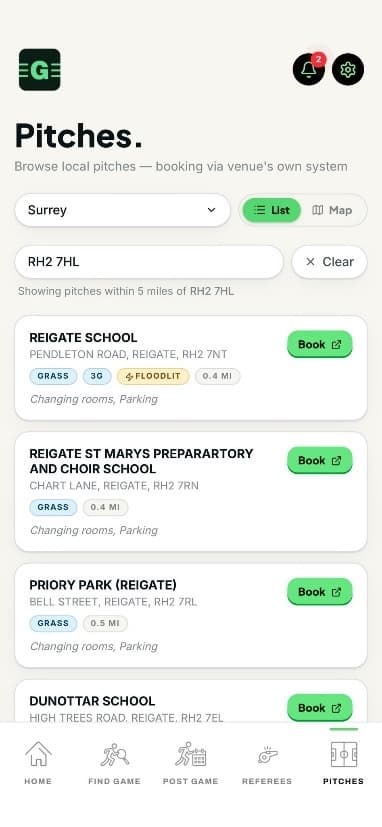
A view of local pitches near you — surface info, distance, and links to book directly with the venue.
- For now, GafferHQ doesn't have direct booking integrations with third-party pitch providers.
- We know you'll have access to your own club pitches — but this gives you a useful list of nearby options.
- Browse by map or list view.
- Each link takes you to the venue's own booking page.
For Referees
Set up your profile and start receiving local booking requests.
Sign-up screen
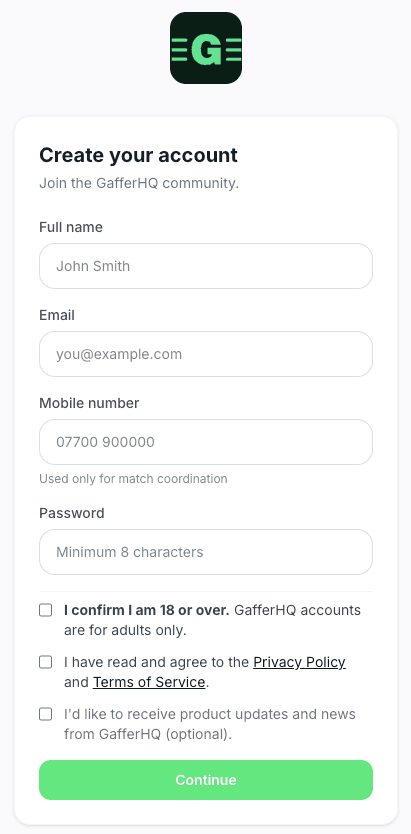
- Go to app.gafferhq.uk.
- Create your profile. You'll receive an email to verify your address. Click “Verify email address” to activate the account.
Pick your role
Tell GafferHQ how you'll be using the app so it can set you up correctly.
- Select Referee — this sets up your referee profile and makes you discoverable to managers looking for officials.
- Hit Continue to proceed to your profile setup.
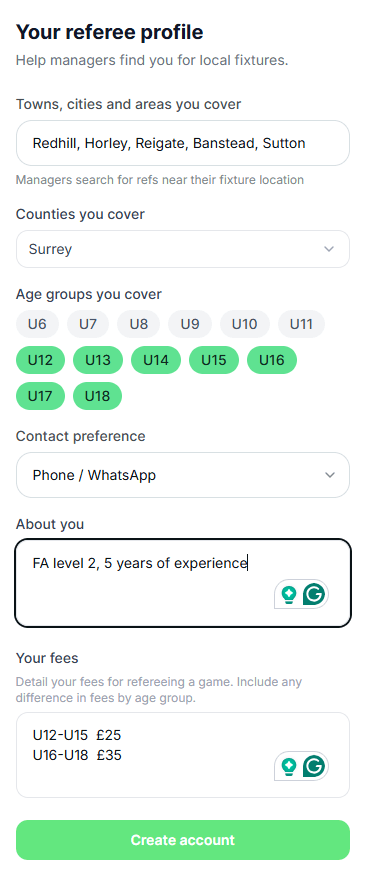
Referee profile
A complete profile helps managers find you for the right fixtures.
- Towns, cities and areas you cover — optional. This appears on your profile when managers are looking and is useful if you don't want to cover an entire county.
- Counties you cover — managers filter by county when searching for referees.
- Age groups — select all the age groups you're qualified to cover.
- Contact preference — your preferred contact method, visible to managers who book you.
- About you — your experience and qualifications, to enhance your profile.
- Your fees — let managers know what you charge for different age groups.
Referee dashboard
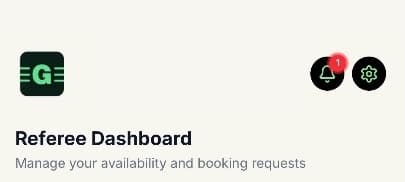
Manage your availability and respond to booking requests.
Top toolbar (left to right):
- The “G” logo takes you back to the home screen.
- Share creates a link to share with managers and referees, to help grow the community.
- Contact us sends a message to the team at GafferHQ.
- Notifications show new activity or requests on any fixture in the process of organisation.
- Settings — notification preferences, data privacy, account deletion etc.
On the page:
- New booking requests appear at the top — Accept or Decline.
- If you accept, you're added to the fixture and the private chat with the managers.
- These fixtures are listed under Confirmed bookings.
- My available dates shows the dates you've made available to managers.
- You can edit your profile at any time.
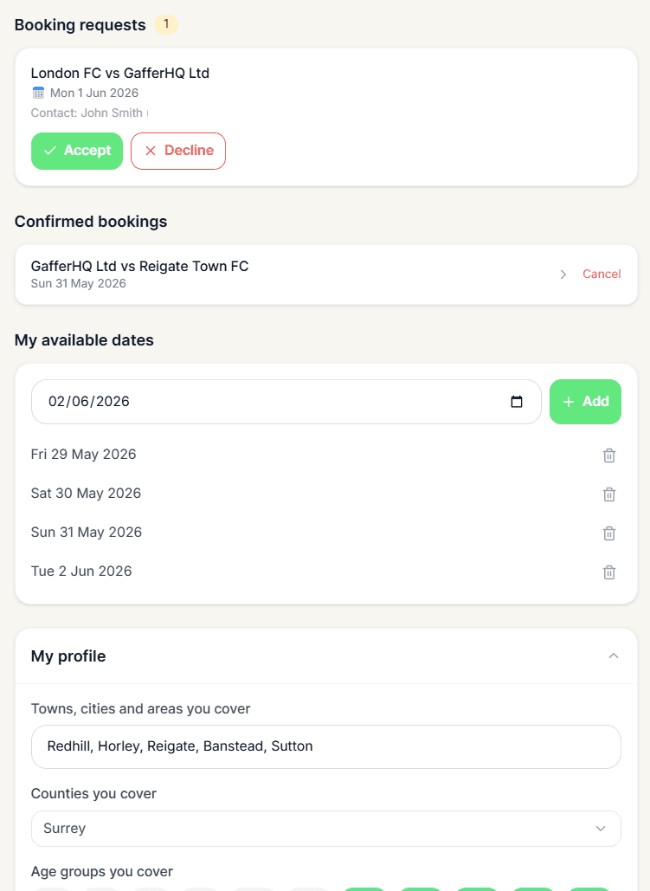
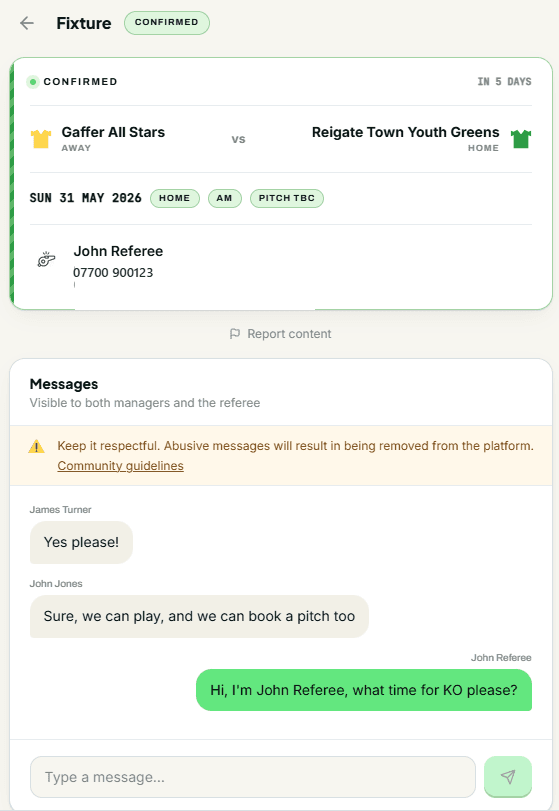
Confirmed bookings can be Confirmed or Pending— meaning either confirmed by both managers, or still pending between them. You'll see the fixture status when you open the fixture card.
Fixture engagement
Coordinate logistics privately with both managers in the fixture chat.
- Chat is enabled with the managers of any Pending or Confirmed fixture you're booked on.
- You're added to the fixture as a participant, and to the chat to help coordinate venue address, kick-off, etc.
- You can cancel a booking at any time.
- The fixture itself can be cancelled by either manager.
- All communication is private to that specific fixture.
Community Guidelines
How we keep GafferHQ a respectful place for everyone.
GafferHQ exists to make football management easier and more enjoyable. To keep it that way for everyone, we ask all managers and referees to follow our community guidelines when using the platform. Please respect all other managers and referees.
Built-in safety features
A range of features support online safety across the platform.
| Feature | What it does |
|---|---|
| Report / Flag button | Available within message chats, tournament listings, and availability posts. Submissions generate an alert in the admin moderation dashboard for review. |
| PDF / image approval queue | PDF and image uploads are held in a pending review queue and require manual approval before publication. |
| Account suspension | Admin controls allow administrators to suspend or permanently ban user accounts immediately where required. |
| Profanity filter | Basic profanity and inappropriate-language filtering applied across free-text inputs, including messages, usernames and descriptions. |
| Appeals process | Suspended users may submit an appeal through a dedicated form, delivered to the admin review inbox. |
| Safety onboarding screen | Post-signup onboarding screen presenting core community and safety guidelines, requiring user acknowledgement before continuing. |
| Rate limiting on messages | Message activity limited to a maximum number of messages per hour within each fixture thread, to reduce spam and harassment. |
| User blocking | Users may block another manager, preventing direct messages and match-related requests between the accounts. |